
ACCUBLIND blind control
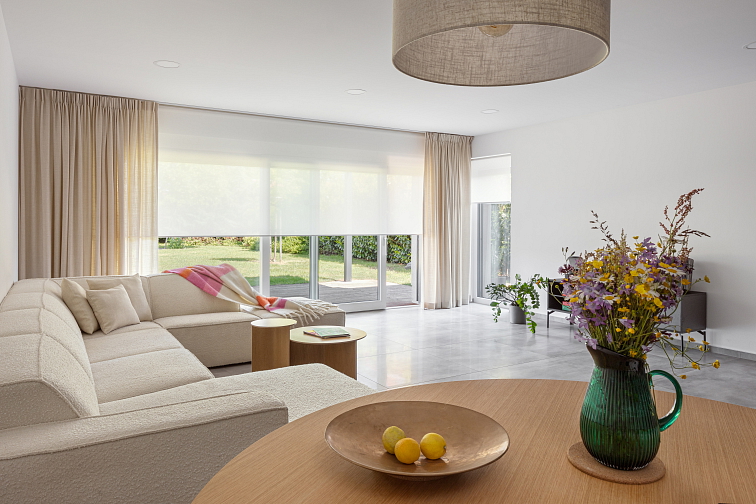
SMART CONTROL - ANYTIME, ANYWHERE
ACCUBLIND blinds are designed for modern living. Control is intuitive, safe and supremely convenient - no cords, no chains, no worries. Perfect for homes with children and pets.
How Can You Control ACCUBLIND Blinds?
Remote control - the classic, reliable and instant solution. Control your blinds comfortably from the sofa, bed or work space.
Every blind includes a six-channel remote control, allowing you to operate up to 6 blinds individually - or all at once
Smart app control - stay in control of all your blinds - wherever you are. With the mobile app, you can:
- raise or lower your blinds
- set schedules (e.g. open at sunrise, close at sunset)
- monitor battery status
- set automations for each blind individually
Voice control - connect your blinds to voice assistants such as Google Home, Amazon Alexa or Apple Siri and control them hands-free.

SETUP & CONFIGURATION GUIDE FOR YOUR ACCUBLIND BLIND
Just purchased your motorised smart blind and wondering how to connect, set up and control it? Good news - your blind is ready to use straight out of the box! The end positions are pre-set at the factory and the blind is already paired with the remote control, so you can start operating it right away.
This guide will show you how to connect the blind to the mobile app to unlock all its smart features, and how to adjust the settings to suit your needs.
1. First Setup & App Pairing
After installation, you need to pair the blind with the app. There are two simple ways to do this:
Option 1: Using QR Code (fastest)
- Download the app (iOS / Android)
- Scan the QR code on the motor
- Follow the instructions in the app
Note: Each motor has its own unique QR code - one code cannot be used for multiple blinds.
Option 2: Manual Pairing
- Open the app and select “Add new device”
- Press and hold the button on the motor until the LED starts blinking
- Select the blind from the list of detected devices
2. Smart Home Integration (Matter)
Want to control your blind via Apple Home, Google Home or Alexa? No problem - simply meet the following requirements:
What you need:
- 2.4 GHz Wi-Fi network
- Phone connected to the same network
- One of the supported apps: Apple Home, Google Home or Amazon Alexa
Steps:
- In the blind app, select “Connect to smart home”
- Scan the motor’s setup QR code
- Open your smart home app and select “Add device” and follow the instructions
- The blind will be added to your system
- Once connected, you can create automations and smart scenarios for everyday comfort.
Note: Each motor has its own unique QR code - it cannot be used for multiple devices.
3. Setting Upper & Lower Limits
To let the motor know when to stop, set the upper and lower limit positions for your blind.
➤ Upper position (blind fully raised):
- Manually move the blind to the desired upper position
- Press and hold the "Jog ↑" button for 2 seconds
- The LED will flash briefly - the position is now saved
➤ Lower position (blind fully lowered):
- Move the blind down to the desired position
- Press and hold the "Jog ↓" button for 2 seconds
- The LED will confirm the setting
➤ Resetting all limits:
Want to start from scratch?
Press and hold both buttons (↑ and ↓) simultaneously for 10 seconds. All saved settings will be erased.
Note: This will erase all saved settings, including favourite positions and paired remotes.
4. Advanced features & customisation
Want to get the most out of your smart blind? Explore these additional options:
➤ Pairing multiple remote controls
- Multiple remotes can be paired to a single motor
- The pairing process is the same as for the first remote (via QR code or manually)
➤ Removing a remote control
If you want to disconnect a specific remote (e.g. when changing users or troubleshooting a connection issue), you can remove it in the motor settings within the app.
➤ Changing the rotation direction
- If the blind moves in the wrong direction (e.g. down instead of up), you can reverse it directly in the app - no physical adjustment needed.
- This is useful for specific mounting installations.
➤ Adjusting motor speed
You can customise the movement speed (e.g. slower for heavier fabrics or for more precise fine-tuning).
➤ Step mode
- The blind moves in small increments
- Useful for precise height adjustment
➤ Favourite positions
1) Saving a frequently used position
- Set the blind to the desired height in the app (e.g. 50%)
- Select "Save favourite position" (usually marked with a star or heart icon)
- Favourite positions can only be set after the upper and lower limits have been configured
2) Quick return with one tap
- One click moves the blind to the saved position
3) Editing or deleting a favourite position
- Favourite positions can be updated or deleted at any time in the app
➤ Adjusting limits without a full reset
Want to make a small change to the upper or lower limit? No need for a full reset.
Go to Limit Settings in the app and adjust the position as needed.
Troubleshooting / Common issues
Have you encountered a problem? Take a look at the clear overview table of the most common issues and their solutions.
|
Problem |
Cause |
Solution |
|
Motor not responding |
Battery empty |
Charge the motor via USB-C |
|
Cannot connect to Wi-Fi |
Wrong network |
Use a 2.4 GHz Wi-Fi networ |
|
Blind not moving smoothly |
Limits not set |
Set the upper and lower positions |
|
LED flashing red |
Low battery |
Recharge the motor |
|
Cannot pair with phone |
Bluetooth off |
Turn on Bluetooth |
|
Blind moving in wrong direction |
Incorrect motor direct |
Change direction in the app or via the button |
Smart Home Compatibility (Matter)
ACCUBLIND blinds are designed for modern smart homes. They support the Matter over Thread standard, allowing seamless integration with popular platforms such as Apple Home, Google Home, Samsung SmartThings, and Home Assistant.
Each blind comes with its own unique Matter pairing code and is ready for integration.
What our technical support includes:
We make sure your blind works exactly as it should:
- proper functionality of the blind and motor
- putting the device into pairing mode
- resetting the device
- verification of the Matter pairing code
- firmware updates
What is not covered by our support:
The actual connection to a smart home system depends on the specific platform and its configuration.
Therefore, we do not provide:
- setup of apps such as Apple Home, Google Home, etc.
- configuration of home networks or hubs
- troubleshooting issues caused by third-party devices
👉 In practice:
We prepare your blind for connection, but the final setup is completed directly within your smart home app.
If you encounter an issue on the smart home side, we recommend referring to the documentation provided by your hub or app manufacturer, where you’ll find the most accurate instructions for your specific system.
Smart features for modern living
With the app, your blinds are always under control. Operate them from your phone from anywhere, monitor battery levels and set custom schedules. You can even set up automatic wake-up with the morning sun or simulate presence for added security when you’re away.
The Matter protocol ensures compatibility with the majority of smart home systems (Google Home, Amazon Alexa, Apple Siri). It’s an open standard supported by major tech companies - so your smart home stays future-proof.
No entries found...